Easily Download YouTube Videos/Playlist with Metube on Ugreen NAS
MeTube is a simple and efficient tool for downloading individual YouTube videos or entire playlists. It provides a lightweight web interface powered by yt-dlp, all running safely inside a Docker container. Just paste a video or playlist URL, click download, and you’re done - nothing more to it.
In this guide, I’ll show you how to install MeTube on a UGREEN NAS in under 5 minutes using UGREEN’s native Docker app. There are no commands to run and no terminal work involved , just copy and paste.
In fact, the actual setup takes barely a minute. Most of this article is simply explaining what each setting does, so you understand what’s happening instead of blindly following steps.
Prefer watching over reading? This guide is also available on YouTube
Our Compose File and details of configuration
Here is our compose file, lets first understand what we are doing here instead of blindly copying and pasting.
services:
  metube:
    image: ghcr.io/alexta69/metube:latest
    container_name: metube
    restart: unless-stopped

    ports:
      - "8081:8081"

    volumes:
      - ./downloads:/downloads
      - ./metube-state:/downloads/.metube

    environment:
      UID: 1000 # change to your PUID
      GID: 1000 # your PGID
      DOWNLOAD_MODE: limited
      MAX_CONCURRENT_DOWNLOADS: 5
      OUTPUT_TEMPLATE: "%(uploader)s/%(title)s.%(ext)s"
      OUTPUT_TEMPLATE_PLAYLIST: "%(playlist_title)s/%(title)s.%(ext)s"

      YTDL_OPTIONS: |
        {
          "ratelimit": 1048576,
          "merge_output_format": "mp4",
          "format": "bestvideo[ext=mp4]+bestaudio[ext=m4a]/best[ext=mp4]/best"
        }
The bare minimum you need to change in this configuration is your UID and GID. You can simply replace them with your own values and have everything working in just two steps. Skip the rest of this section and go to step 1.
If you’re curious, read on as I explain what each section does, so you know exactly what’s happening instead of blindly copying and pasting.
Ports :
This is where we define which port the application will be accessed on. With 8081:8081 what we are saying is when I access port 8081 on my Ugreen NAS ipaddress:8081 , forward that to port 8081 of container.
So lets say if you wanted to access it on port 9098, you would use 9098:8081 - So now you would access it with ipaddress:9098 Your docker app would still run on 8081 but you will access with 9098
Volumes :
Volumes is where we keep data. We have given 2 volumes. Both in current directory . . means current directory which is your project directory. Project directory is usually shared folders\docker\project name
UID/GID :
Very important. Without these your container will run as root user. If it runs as root it will download files which will be owned by root. And then when you login as a non root user you might not have privilege to access those files. We use the UID and GID of logged in user to make sure that our continer runs as logged user so no permission issues.
Download limits:
with DOWNLOAD_MODE: limited and MAX_CONCURRENT_DOWNLOADS: 5 , we are defining that maximum of 5 videos will be downloaded simultaneously. 6th video will be queued and will download only when any previous out of 5 is downloaded.
Inside YTDL_OPTIONS, we have give ratelimit": 1048576 . This is in bps so 1048576 = 1 MB/s . This is per video. 5 videos means 1 mb per video so 5 mb/s for 5 vidoes.
This prevents MeTube from consuming all available bandwidth.
Output Templates:
Here we define how the download files are named adn organized
For videos we have defined OUTPUT_TEMPLATE: "%(uploader)s/%(title)s.%(ext)s" so the videos are saved like uploadername\videotitle.mp4
For playlist we have defined OUTPUT_TEMPLATE_PLAYLIST: "%(playlist_title)s/%(title)s.%(ext)s" so the playlist is saved like playlistname\video1.mp4, video2.mp4
keeps your library clean adn organized
Output formats :
We have defined these 2 options too"merge_output_format": "mp4",
"format": "bestvideo[ext=mp4]+bestaudio[ext=m4a]/best[ext=mp4]/best"
What this does is that it tries to download the best video stream, in mp4. Also try the best audio stream in M4A and finally save as a single MP4 file.
Now that you have understood it, lets install.
Step 1 : Find your PUID and PGID
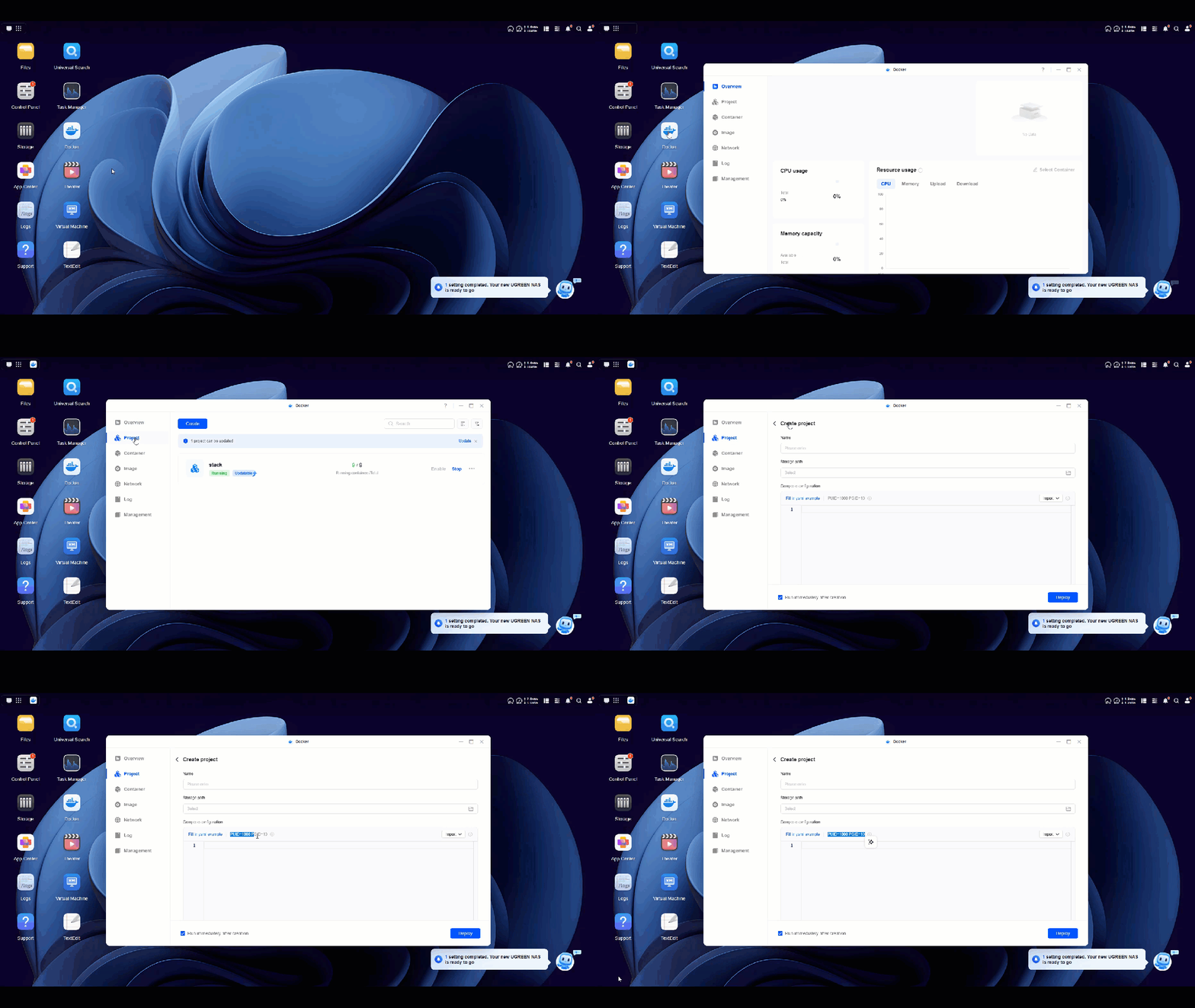
Correct PUID and PGID values are important to ensure there are no permission issues with downloaded files. To find PUID/PGID for logged in user
Login to your UGOS -> Click on docker app -> Project -> Create new -> Take note of PUID/PGID Just above the YAML paste area
Replace this in your YAML file above.
Step 2: Create your Application, paste yaml file
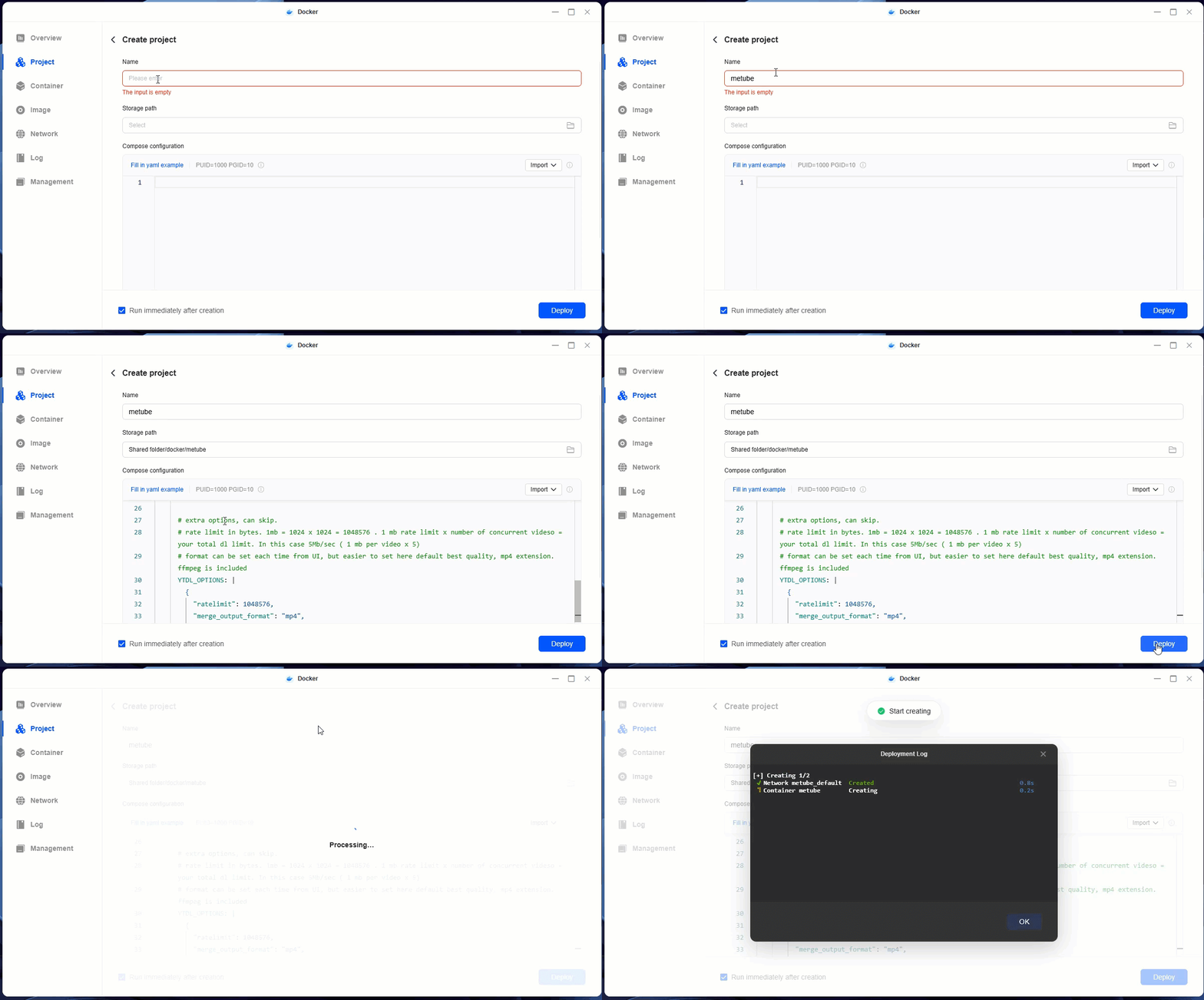
- Go to Docker -> Project -> Create to create a new project
- Give it a name (say metube) and paste your compose file in the yaml area
- Click on delploy
Step 3: Access your app and see if this works
We used port 8081 so you can access your application at nasipaddress:8081 . When you do this you should see the MeTube interface where you can paste the url of video/playlist you wish to download
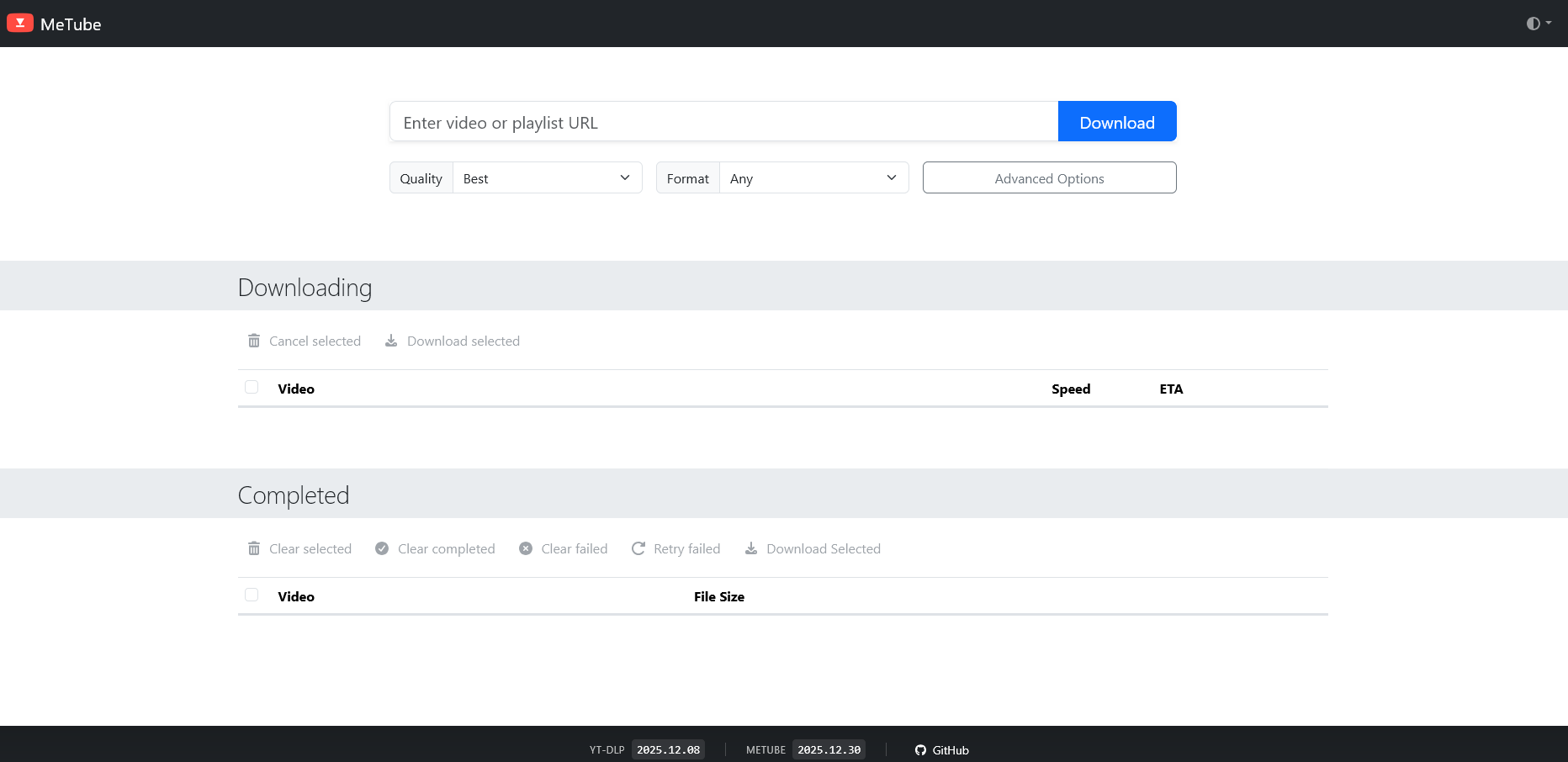
Thats all there is to it.