Install iCloudPD on Ugreen NAS for iCloud Photos backup
Prefer watching over reading? This guide is also available on YouTube
With icloudpd, you can automatically download your entire iCloud photo library to your NAS and keep it safely stored on your own hardware. I will show you how to easily install it on Ugreen.
But before we start- remember that
- This is not an official Apple tool If Apple changes their API or login flow, this can break
- This is a one-way sync only running iCloud → NAS. Deleting photos in iCloud will not delete them from your NAS
We will use the official image which you can see below.
 boredazfcuk
Prepare your Docker Compose File
I’ve prepared a working Docker Compose file for this setup. Its only a few lines. you can download from following link, or copy and paste the following file
 262588213843476
services:
  icloudpd:
    image: boredazfcuk/icloudpd
    container_name: icloudpd
    restart: always
    environment:
      - TZ=Asia/Dubai
      - apple_id=kajain99@gmail.com
      - synchronisation_interval=21600
      - user_id=1000
      - group_id=10
    volumes:
      - ./config:/config
      - ./iCloud:/home/user/iCloud
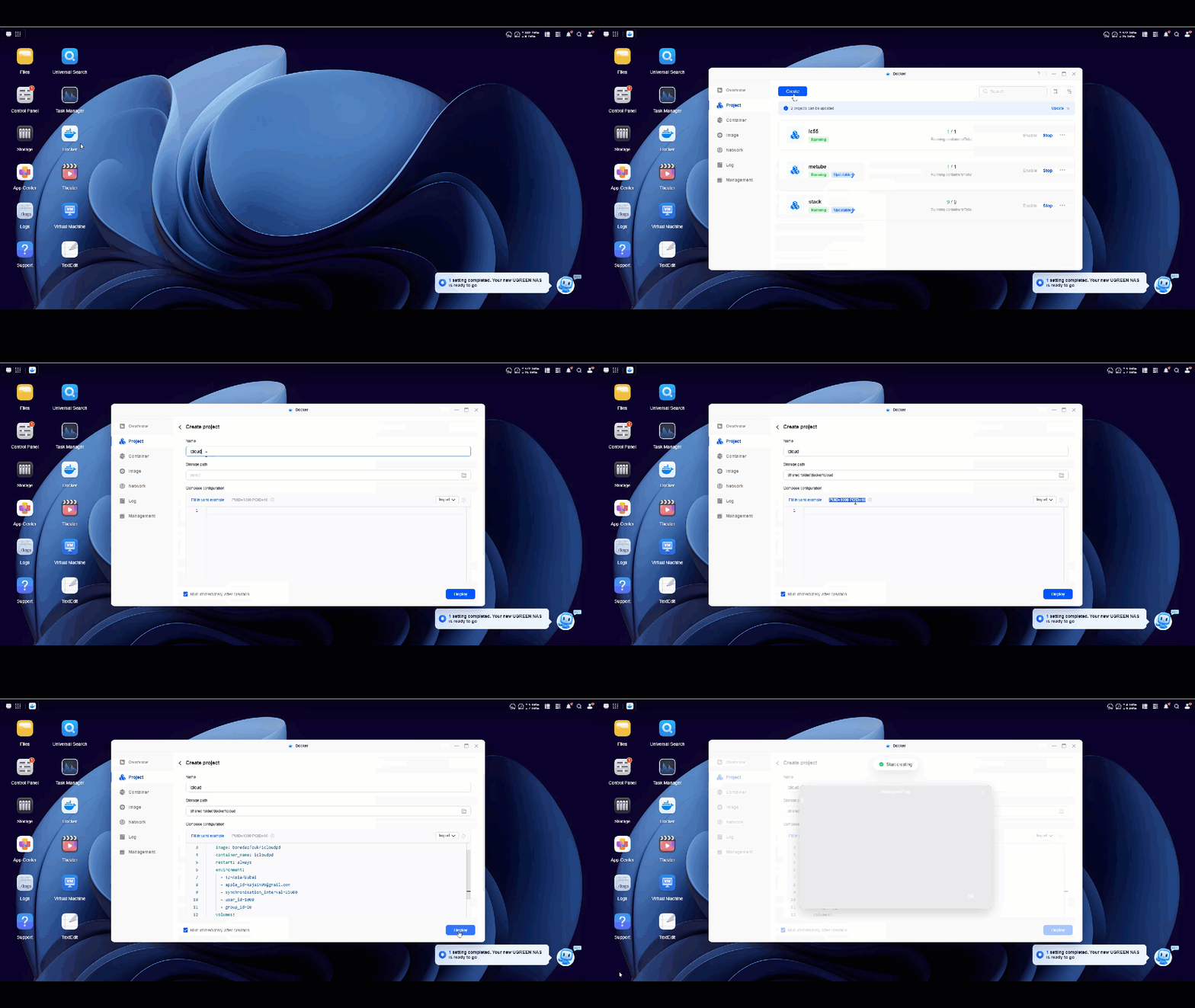
You need to change 2 things in this file . Your TZ which is timezone and user_id and group_id . You can find then as puid and pgid in ugreen by going to docker-> project -> create. they are displayed just above the yaml paste area.
Paste this yaml code in the yaml area and click on deploy
First Run - Authorize your Apple ID
Now we have not yet authorized your user. we have only given an apple_id and no password. So when you go to your container->icloudpd-> logs, you will see this error
2026-01-06 11:34:33 ERROR    Keyring file /config/python_keyring/keyring_pass.cfg does not exist
2026-01-06 11:34:33 ERROR     - Please add the your password to the system keyring using the --Initialise script command line option
2026-01-06 11:34:33 ERROR     - Syntax: docker exec -it <container name> sync-icloud.sh --Initialise
2026-01-06 11:34:33 ERROR     - Example: docker exec -it icloudpd sync-icloud.sh --Initialise
2026-01-06 11:34:33 ERROR    Waiting for keyring file to be created...
This is normal. It simply means icloudpd needs to authenticate your Apple ID.
Go to container -> icloudpd -> terminal -> add -> /bin/sh
This will give you a terminal in which you can run commands for your container. Run here sync-icloud.sh --Initialise
This will Prompt you to log in and handle 2FA . It will store your credentials securely inside the container you should see the status as authentication completed after this.
Create the Failsafe file
Now you will run into your second error/warning
2026-01-06 11:36:23 WARNING  Failsafe file /home/user/iCloud/.mounted file is not present. Waiting for failsafe file to be created...
2026-01-06 11:39:53 INFO     Failsafe file /home/user/iCloud/.mounted exists, continuing
This is a safety mechanism that prevents syncing unless a specific file exists. The creators have specifically mentioned that you need this failsafe file to be present to start syncing here
You can Create the failsafe file with this command:
touch /home/user/iCloud/.mounted
As soon as this file exists, icloudpd will begin syncing your photos. go and check the folder sharedfolder\docker\project_name\iCloud if you can see the downloaded photos.