Install Invidious on Ugreen NAS and Watch YouTube Privately and Ad-Free
If you love YouTube but hate the ads, the tracking, and the feeling that Google is watching your browsing habits, then Invidious is for you. Invidious is an open-source, privacy-friendly front-end for YouTube. You can browse and watch videos without logging into Google, without ads, and with no tracking.
One thing though : Yotube sometimes blocks Invidious playback, so think of this as a privacy bonus tool, it works when it does, but its not guaranteed forever.
Based on the documentation at invidious I have prepared a simple working Compose setup, you can refer to full documentation here https://docs.invidious.io/
Step 1: Generate Security Keys
Invidious needs a couple of secret keys for internal security , session handling and encryption. On Linux the official method uses pwgen, on windows you can use any trust online random string generator like lastpass. We need
- A 16-character random key
- A 32-character random key
Step 2: Use the Docker Compose File
Here is the Docker Compose file you can use directly:
https://gist.github.com/kajain99/64066cb462fd9efc1dfe3262cb8d7150
Insert your keys into the correct variables inside the compose file:
- The 16-character key is used twice (same value)
- The 32-character key is used once
Just replace the placeholders before you deploy.
Step 3: Download the Full Invidious Project Code
Invidious needs two folders from the official GitHub repository to initialize properly.
config/(database schema and settings)docker/(startup scripts and container setup)
These are used the first time to initiate your database and if you skip this, you will get "Relation doesnt exit" error because no database/tables would be created.
Download the full project here:
https://github.com/iv-org/invidious
Then:
- Unzip the downloaded archive
- Upload the
configanddockerfolder into your NAS project directory - Create 2 more directories manually in the NAS proect directory -
companioncacheandpostgresdatan. If you don't create them, they will be created automatically but you might have to setup permissions on them again.
Your final project folder should look like this:
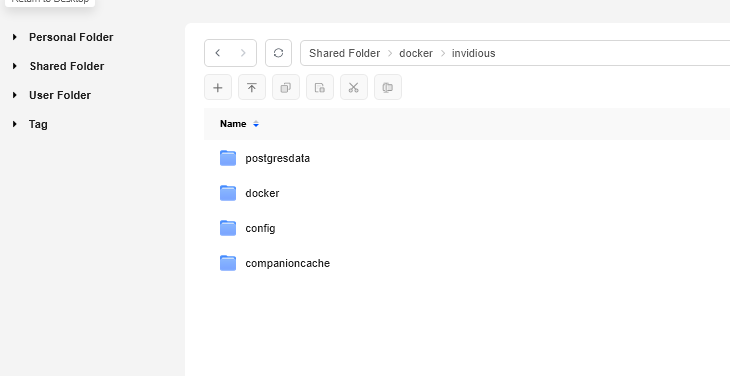
Step 4: Deploy the Stack on UGREEN NAS
Now you should have a compose file( with your 16 and 32 char long passwords), and project directroy called invidous , with 4 subdirectories, you can deploy your stock
- Go to docker app
- Click on project -> add
- Give it a name ( call it
invidiousso that it takes theinvidousas the project directory. If you call it anything else, make sure to browse and select the directory that hasdockerandconfigdirectories. - Paste the Compose in Yaml field and click on deploy

Now you should be able to access invidious at
yournasipaddress:3000 for example 192.168.1.5:3000
Invidious relies on Youtube Public infrastructre so Its not guaranteed to work all the time
Invidious is a cool privacy project, but it still relies on YouTube’s public infrastructure. Its not like its an official app or has any special access to YT.
The way it works is simple:
Invidious fetches video metadata from YouTube’s public endpoints. Since most YouTube content is still accessible without logging in, it can retrieve that information just like a normal browser. When you press play, Invidious requests the video and audio in small segmented chunks, and then reassembles those pieces through its own interface.
Now, YouTube is not obligated to support third-party frontends. So it can be hit by rate limits, bot detection, or blocks at any time. That’s why sometimes playback works perfectly, and other times you may see issues like 403 Forbidden errors or videos failing to load.
So Invidious is best viewed as a privacy-friendly alternative and not a guaranteed permanent replacement for YouTube.